

| Quick Answer
In 2026, the right way to add webcam capture to WordPress is the browser’s native navigator.mediaDevices.getUserMedia() API plus the WordPress REST API. Webcam.js (the library used in our 2016 version of this tutorial) still works, but the underlying approach is now built into every modern browser, requires HTTPS, and integrates cleanly with WordPress’s nonce-based authentication. This guide covers the modern implementation, security checks (HTTPS, permissions, MIME validation), real-world use cases (ID verification, proctoring, profile photos, attendance), and a copy-pasteable working example. |
You’re building a WordPress site that needs to capture an image from the user’s camera. Maybe it’s an ID-verification step on a registration form. Maybe it’s a profile-photo upload that you want to make as frictionless as possible.
Maybe it’s an online exam platform that needs to confirm the test-taker is who they claim to be. The use case is more common than it was a decade ago, and the browser tools to do it are dramatically better.
We at WisdmLabs first wrote this tutorial in 2016, when the standard answer was the third-party webcam.js library and a hand-rolled PHP upload script.
That code still runs, but it skips three things that are non-negotiable in 2026: HTTPS-only secure contexts, nonce-protected uploads, and proper MIME-type validation. This update replaces the old approach with the modern one and surfaces the security and UX gotchas that come with capturing media inside WordPress today.
If you’re building this as part of a larger custom feature, our recent piece on 10 high-performance WordPress setup configurations used by fast-growing businesses covers the foundation choices (PHP version, hosting, REST tuning) that determine whether features like webcam capture feel snappy or sluggish.
Why You Might Need Webcam Capture on WordPress
A few real workflows where adding camera capture inside WordPress (rather than asking users to upload from disk) actually pays off:
- ID verification on registration or KYC flows. Proctorio’s identity verification flow, for example, captures a still of the user’s ID card at the start of an exam.
- Online proctoring for course platforms. Talview’s proctoring overview explains why live webcam capture has become standard for credential exams.
- Profile photos that don’t force users to dig through their phone gallery.
- Membership/attendance check-ins for events and gated communities.
- Field-evidence uploads (insurance claims, support tickets, before/after photos).
Every one of these used to require a third-party SaaS or a custom mobile app. In 2026, the browser handles the camera, and WordPress handles the storage. That’s it.
Capturing Pictures from the Webcam
Two files that would be essential for creating our image capturing application would be:
- A Web Page to display the Webcam
- A Script to handle image upload
Step 1. A Web Page to display the Webcam
To be able to snap an image with the webcam and save it, we use the webcam.js file. Github offers the file for free download, which you can find here.
index.php
This is how exactly you would need to configure webcam.js to add the requisite functionality.
<script src="webcam.js"></script>

<div id="my_camera" style="width:640px; height:480px;"></div>

<div id="my_result"></div>

<script language="JavaScript">


Webcam.set({

    width: 640,

    height: 480,

    image_format: 'jpeg',

    jpeg_quality: 90

});


Webcam.attach( '#my_camera' );

function take_snapshot() {

               // take snapshot and acquire image data

    Webcam.snap( function(data_uri) {

    // display results

        document.getElementById('results').innerHTML =

        '<h2>Here is your image:</h2>' +

        '<img src="'+data_uri+'"/>';

    } );

}

Webcam.upload( data_uri, 'myscript.php', function(code, text) {

// Upload complete!

// 'code' will be the HTTP response code from the server, e.g. 100

// 'text' will be the raw response content

} );

</script>


<form>

    <input type="button" value="Take Snapshot" onclick="take_snapshot()">

</form>
Explanation:
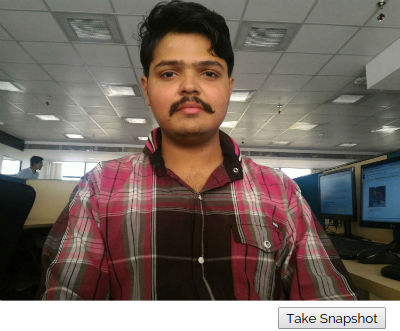
Adding these lines of code to the file will let you create a live camera feed in my_camera DIV. When you click on ‘Take Snapshot’, the camera would click a still picture, convert it to a JPEG, and deliver a Data URI which is inserted into the my_result DIV as a standard <IMG SRC> tag.
Data URIs may be passed around like any URL, and can be submitted to your server as well.
Attaching the webcam to a DIV element
The file WebcamJS is initialized and activated by “attaching” a live camera viewer to a DOM element on the condition that the DOM element must already be created and should be empty. Pass in an ID or CSS selector to the Webcam.attach()
Webcam.attach( '#my_camera' );
This will activate the user’s webcam, ask for the appropriate permission, and begin showing a live camera image in the specified DOM element.
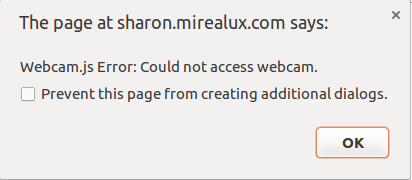
Should the camera not be attached to the system, you will be prompeted with an error as follows,
To Click a Picture
The Webcam.snap() function is called in a callback function to click a picture. The image data is passed to the function as a Data URI parameter, which can be used to then display image on the website.
Webcam.snap( function(data_uri) {

    // display results in page

        document.getElementById('results').innerHTML =

        '<h2>Here is your image:</h2>' +

        '<img src="'+data_uri+'"/>';

    } );
Uploading Images to a Server
To upload the snapped image onto the server, the Webcam.snap() function delivers image as a client-side JavaScript Data URI. The binary image data is encoded with Base64 and stuffed into the URI.
Webcam.upload( data_uri, 'myscript.php', function(code, text) {

// Upload successful!

// 'code' will be the HTTP response code from the server, e.g. 200

// 'text' will be the raw response content

} );
The Webcam.upload() function accepts three arguments: the Data URI containing the Base64 encoded image data as returned from snap(), a URL of PHP script , and a callback function to execute when the upload is complete.
Step 2: Writing A Script To Handle The Image Upload
myscript.php
$name = date('YmdHis');

$imagename = $_SERVER['DOCUMENT_ROOT']."/wp-content/uploads/multisite_images/".$name.".jpg";

move_uploaded_file($_FILES['webcam']['tmp_name'], $imagename);
The image data is uploaded as part of a standard multipart form post, and included as a form element named webcam. To gain access to this image data we have to write above php script. In above code the image is uploaded in the folder “multisite_images”.
While this tutorial aims at configuring a web camera to upload images to WordPress, the same process flow would be applicable to any PHP application! Hope this article helped!
Common Pitfalls and How to Fix Them
“Camera doesn’t start.” The page is being served over HTTP, the user denied permission, or another tab has the camera. Check the browser console for a NotAllowedError or NotFoundError and surface the message to the user.
“It works in dev but breaks in production.” Almost always HTTPS or a missing CSP header. Check that your Permissions-Policy header doesn’t block camera=.
“The webcam light stays on after I leave the page.” You’re not stopping the tracks. Call stream.getTracks().forEach(t => t.stop()) on beforeunload and on any “stop” UI control.
“The upload returns 403.” Nonce is missing or expired. Re-enqueue, and consider regenerating the nonce on long-lived pages with the Heartbeat API.
“It works on Chrome but not Safari.” Safari is stricter about user-gesture requirements. The capture button must be clicked by the user; you cannot auto-trigger from DOMContentLoaded.
If something else breaks in a non-obvious way, our running guide to the 20 most common WordPress errors and how to fix them covers the core, plugin, and database-level issues that often surface in custom feature work.
For deeper white-screen and fatal-error troubleshooting, our comprehensive guide to resolving WordPress fatal errors is the more focused reference. You can also run our free WordPress Bug Fixing Bot against the symptom and get a triage in a few minutes.
Frequently Asked Questions
Does the 2016 webcam.js code still work in 2026?
The library still runs, but the tutorial’s PHP upload script is now a security risk. webcam.js wraps getUserMedia and adds a Flash fallback that no modern browser supports anymore, so the wrapper adds little value. We recommend the native getUserMedia approach in this guide.
Why do I need HTTPS?
Browsers treat camera and microphone as sensitive permissions. Since Chrome 47, getUserMedia is only available in secure contexts. Firefox and Safari followed. The only exceptions are localhost and file:// for local testing. Your production site needs HTTPS, period.
How do I handle users who deny camera permission?
Catch the NotAllowedError from getUserMedia and offer a fallback file upload (input type=”file” accept=”image/*” capture=”user”). The capture attribute tells mobile browsers to open the camera UI directly, so you keep the same workflow without needing the live preview.
Can I capture video, not just stills?
Yes. Use the MediaRecorder API on top of the same MediaStream. Record into a Blob, post it to the same REST endpoint with a video MIME type, and update your allowlist to include video/webm or video/mp4. Note: video files get large quickly, so add explicit size limits.
Is this GDPR-compliant?
The technical implementation is. The legal compliance is your responsibility. You need a clear privacy notice explaining capture, storage, retention, and the user’s right to delete. If you’re capturing biometric data (face for ID verification), that’s special-category data under GDPR and needs explicit consent and a documented lawful basis.
Does this work in WordPress Multisite?
Yes. media_handle_upload() respects multisite, and uploads go to the current site’s media library by default. If you need cross-site uploads, switch context with switch_to_blog() before calling media_handle_upload().
One Response
Um, where do we find webcam.js script necessary for this post?